
How to Invite Team Members to Your Premagic Account
Premagic lets you add team members with different permission levels to your account. Here's how to invite your teammates:
Step 1: Log in to Premagic
Log in to your Premagic account on the web application at app.premagic.com.
Step 2: Navigate to Users
Go to Settings from the left navigation bar and click on Users.


Step 3: Add a Team Member
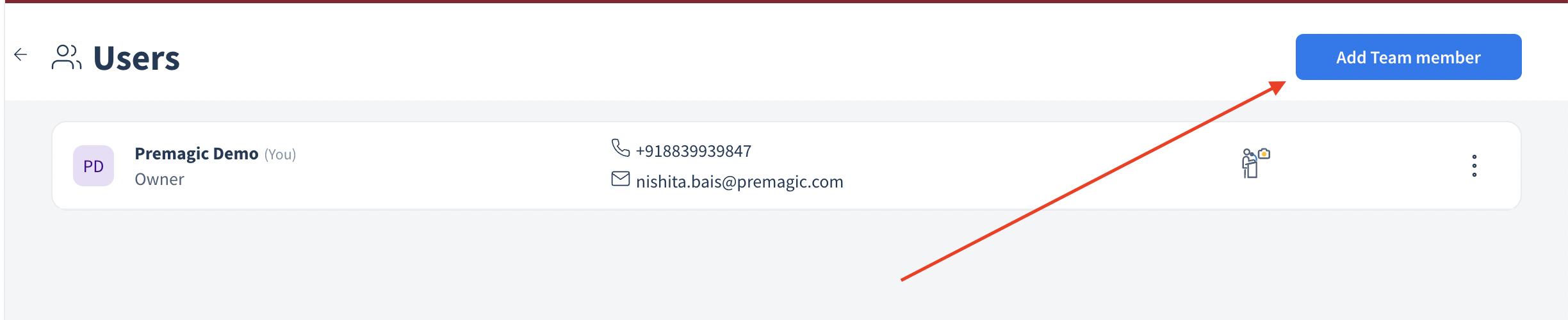
Click on Add team member on the Users page. A form will open where you'll need to fill in the following details:
-
Name
-
Phone Number
-
Email
-
Role (see role descriptions below)
Step 4: Choose a Role
Select the appropriate role for your team member. Each role determines what they can access within the application:
Owner: Complete control of account settings and user management.
Super Admin: Full access to all events, permissions, and user management.
Manager: Manage and create events with given permissions. Can invite and list other users.
Standard User: View events assigned to them. No event creation rights.
Photographer: Can upload photos to assigned events only.

Step 5: Send the Invite
Once you've filled in all the information and selected a role, click Invite team member.
That's it! Your teammate will immediately receive an email invitation to join the team and log into the account. They'll be able to access relevant features based on the role you've assigned.