

Premagic gives event organizers full control over how attendees provide their photo during registration. By default, attendees can either upload an existing photo or take a live selfie with their device camera. If you'd prefer to only accept live selfies for example, to prevent someone from uploading another person's photo you can disable the upload option with a single toggle.
This article walks you through where to find that toggle and what each option does.
When to disable photo upload
Allowing only live selfies is recommended when:
-
You want to prevent attendees from uploading photos of other people (a common request for security-conscious events).
-
The photo will be used for facial recognition, badge printing, or check-in, and you need to verify the person is physically present at registration.
-
Your event policies require that the photo on file matches the person registering.
When upload is disabled, the attendee's only option is to take a selfie using their device camera at the time of registration.
Where to find the setting
The toggle lives inside the Selfie field of your registration form.
-
Open your event in Premagic.
-
Go to the registration form editor.
-
Find the Selfie field in the form.
-
Click Edit on the Selfie field. The Attendee photo settings dialog opens.

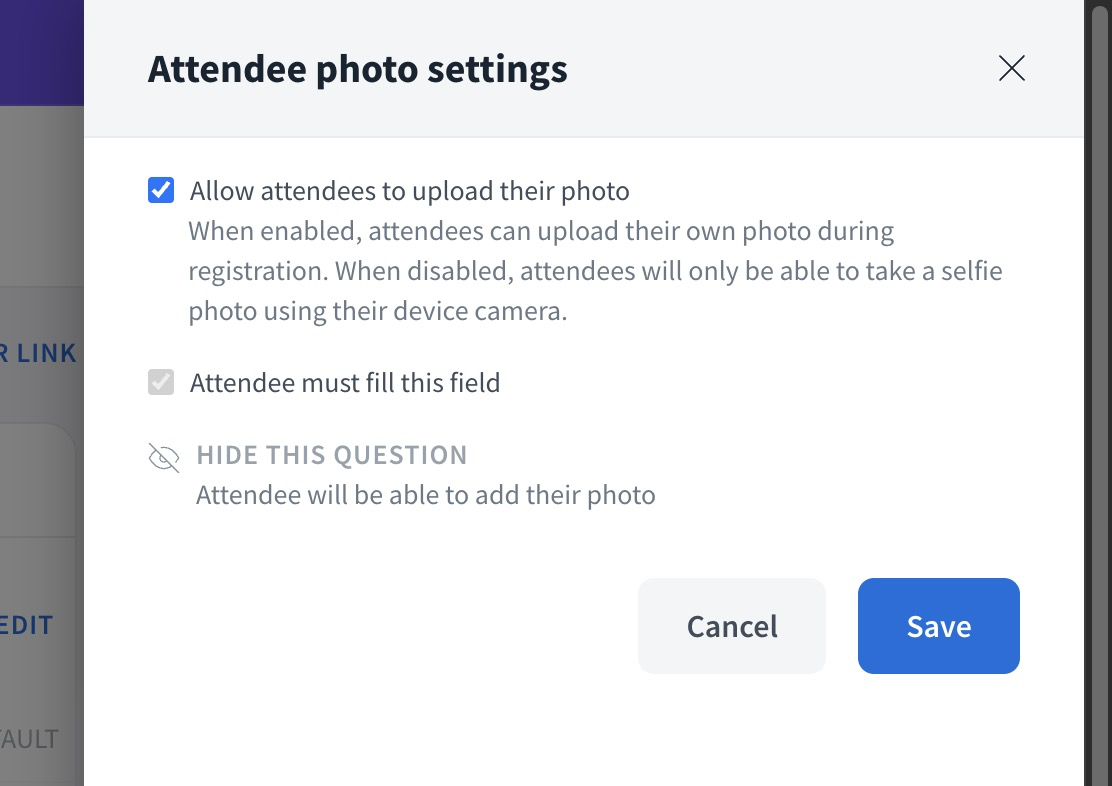
The Attendee photo settings dialog
You'll see three controls:
Allow attendees to upload their photo. This is the main toggle.
-
Enabled (default): Attendees can either upload an existing photo from their device or take a live selfie during registration.
-
Disabled: The upload option is hidden. Attendees can only take a selfie using their device camera.
Attendee must fill this field. Makes the selfie a required field on the registration form. If turned off, attendees can skip the field and complete registration without a photo.
Hide this question. Removes the selfie field from the registration form entirely. Use this when you don't need attendee photos at all.
Frequently asked questions
Can I change this after attendees have started registering? Yes. The setting is applied to new submissions from the moment you save it. Photos already collected remain in your event.
Does disabling upload work on desktop browsers? Yes. On desktop, attendees will be prompted to use their webcam to take the selfie.
What happens if an attendee's device doesn't have a camera? If upload is disabled and the attendee has no camera, they won't be able to complete the selfie field. In that case, you may need to enable the upload option temporarily or collect the photo through another channel.
Can I set this as a default for all my events? The setting is configured per event, on the registration form. You'll need to set it for each event individually